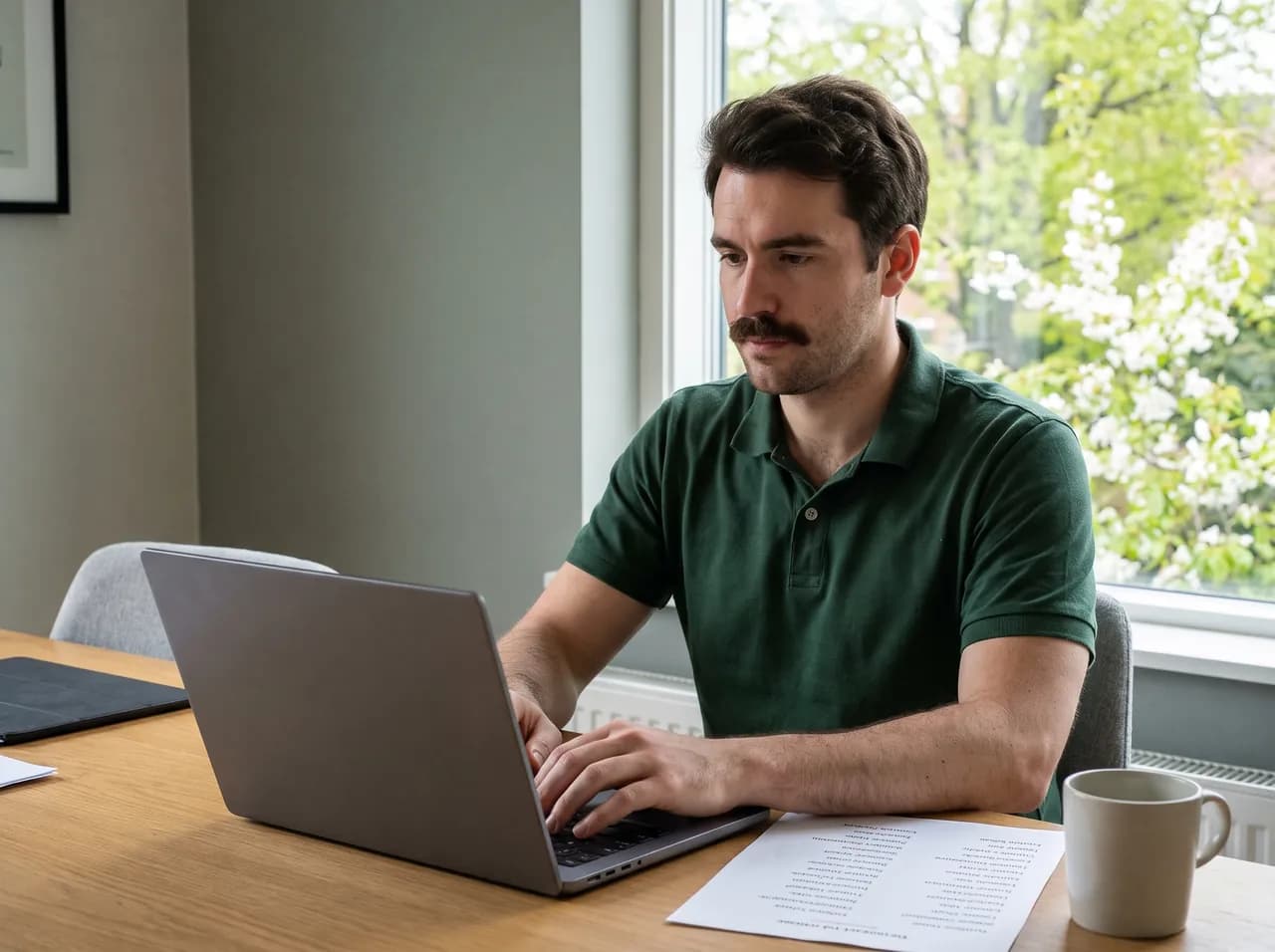
The candidate experience in the Next HR app
What a candidate goes through from invitation to submission, step by step, so you can prepare them, answer their questions and write a helpful message around the invitation.
November 11, 2025Updated January 20, 2026

Key takeaways
- Candidates install the app once and open it from the invitation link.
- They see a briefing and agree before anything is recorded, then run a system check.
- A practice test is available before the real one.
- Answers are saved as they work, and the clock is kept on the server.
In this article
Candidates take your assessment in the Next HR app. Knowing what they will see helps you prepare them and answer their questions. The candidate help centre on this site has the candidate-facing version of this page. This one is for you: it follows the candidate’s journey so that you know what to expect and what to say.
Before the test
The candidate receives your invitation email and follows its link to a short guide. They download the app for Windows, macOS or Linux, install it and click the button on the page to open it. A phone, a tablet or a Chromebook cannot run the app, so say so in your message. Installing takes a few minutes, and candidates who do it a day early arrive calmer than those who leave it to the last minute.
The steps in the app
- WelcomeThey see the role, the assessment, the number of questions and the time, and press Continue.
- Briefing and consentThe app lists what it notes and what it never does, and the candidate agrees to three things: the terms and privacy policy, the monitoring that applies and taking the test alone.
- System checkThe app checks the connection and, as the invitation says, screens, camera and screen sharing, and explains anything that needs fixing.
- Practice or startThey can try a short sample test, which is not timed, not monitored and sends nothing, or start the real test after confirming.
During the test
The test fills the screen with the question, the answer area, the question numbers and the clock. Candidates can move between questions, flag any they want to return to and submit when done. Their answers are saved as they work, and the app tells them when 5 minutes and 1 minute are left. If time runs out, the answers are submitted for them.
If something goes wrong
- If the connection drops, the test goes on and the app catches up when it returns.
- If the app closes, opening the same invitation again resumes with the same clock and saved answers.
- Technical interruptions are recorded as technical events, not as suspicious behaviour.
After they submit
The app tells the candidate that the test has ended and that the hiring team will be in touch. You are notified, and the result appears on the invitation’s page. Candidates are anxious to hear what happens next, so say in your message when they can expect to hear from you, and keep to it.
Help your candidates
In your own message, point them to the practice test and the candidate help centre, and give a person to contact before the test.
Questions candidates often ask
| Question | Answer |
|---|---|
| Do I need an account? | No. The invitation is all you need. |
| Can I use my phone? | No. Use a Windows, macOS or Linux computer. |
| What does the app record? | Only what is listed on the briefing screen for your invitation. The microphone is never used. |
| What if my connection drops? | Carry on when it returns. Your answers are saved and the clock is kept by the server. |
| Can I practise first? | Yes. A short practice test is in the app, not timed, not monitored and sends nothing. |
| Can I ask for adjustments? | Yes. Contact the person named in your invitation before you start. |
A message that helps
A short message makes a large difference to how many candidates start, and how they perform. Say what the assessment is for, how long it takes, what they need (a Windows, macOS or Linux computer and a steady connection), whether a camera is required and why, that a practice test is available, who to contact, and when the invitation expires. See the page on inviting candidates for a template.
About the author
Ryan Caldwell, Product lead
Ryan leads the Next HR product and writes the product documentation, along with the reasoning behind design choices such as keeping a person in every hiring decision.